
ID Verification
Identity verification is an important part of sending money internationally. Every new Transfer Galaxy customer needs to verify their identity before they can send money.
The verification process depends on your country of residence. Customers in Nordic countries may be able to verify their identity using an electronic ID (eID), while customers in other countries may need to provide a valid passport, national ID card, or driving licence.
To begin the verification process, download the Transfer Galaxy app and create an account. You’ll need to verify your email address and phone number. Once your account is set up, follow the steps provided in the app to complete your identity verification.
For a step-by-step guide on completing your identity verification, watch the video tutorial below.
ID verification on the mobile phone
Use this method if you browse the TransferGalaxy website from your mobile device.
- Log in using the email and password that you have registered with. Click Log in.
- Prepare your ID documentation and click Verify.
- Choose what you want to verify your ID with: Passport, Driver’s licence or ID Card. Click on the corresponding icon.
- Click inside the area around the Camera icon.
- If you have the document photo on your smartphone click Photo Library option. Otherwise, click Take Photo or Video.
- Take a photo of you ID document and click Use photo.
- The system will automatically analyse your photo. If it returns warnings, click on the Take again button and take a new photo.
- If there are no warnings, click Confirm.
- Verification starts. You will be redirected to a temporary webpage.
- Once your identity is verified, you will receive an SMS notification. The verification may take up to 5-15 minutes depending on your location.
ID verification on the computer
Use this method if you have the saved photos of your identity on the computer. Make sure not to use the unsupported formats.
- Log in using the email and password that you have registered with. Click Log in.
- Prepare your ID documentation and click Verify.
- Choose what you want to verify your ID with: Passport, Driver’s licence or ID Card. Click on the corresponding icon.
- Select an option ‘Upload a saved photo from your computer’.
- The system will automatically analyse your photo. If it returns warnings, click on the ‘Take again’ button and take a new photo.
- If there are no warnings, click Confirm.
- Follow the same instructions and upload a clear photo of the back-side of the document, in case you verify with a driver’s licence or an ID card. Then click Confirm.
- You will be redirected to a temporary webpage.
- Once your identity is verified, you will receive an SMS notification. The verification may take up to 5-15 minutes depending on your location.
ID verification on the computer using the mobile phone
Use this option if you don’t have any saved photos and you are ready to take them with your smartphone.
- Log in using the email and password that you have registered with. Click Log in.
- Prepare your ID documentation and click Verify.
- Choose what you want to verify your ID with: Passport, Driver’s licence or ID Card. Click on the corresponding icon.
- Select an option to Take a photo of your ID card using your mobile phone.
- Enter your country and the mobile phone number you have specified on the registration. Click Send link. LEAVE YOUR BROWSER OPEN.
- On your mobile phone open an SMS and click the link provided in the SMS. The link directs you to a website that requests you to upload your photos. Click the camera icon.
- Take a photo of you ID document from this website and click Confirm. Click Use photo.
- The system will automatically analyse your photo. If it returns warnings, click on the Take again button and take a new photo.
- If there are no warnings, click Confirm.
- Follow the same instructions and upload a clear photo of the back-side of the document, in case you verify with a driver’s licence or an ID card. Then click Confirm.
- Get back to your computer. In the browser click the Send document button.
- Verification starts. You will be redirected to a temporary webpage.
- Once your identity is verified, you will receive an SMS notification. The verification may take up to 5-15 minutes depending on your location.
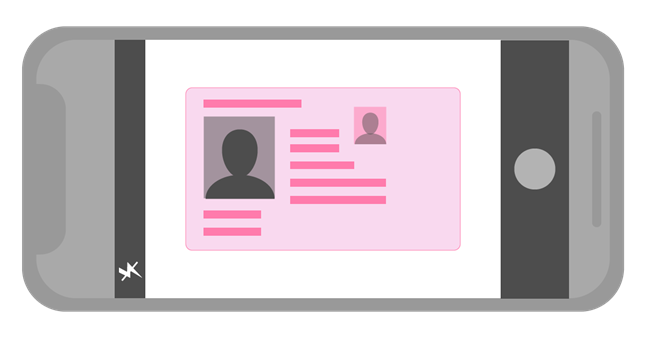
Common problems during the verification
These are the most common mistakes that are made when taking photographs.
- The entire document is NOT visible on a photo: Make sure to include all 4 corners of the document. It’s OK to leave margins around the document.
- Insufficient photo quality: bad photo quality and unreadable text should be avoided.
- Photo glares: make sure to turn off your photo flash before taking the photo. Also, check that the document and background are not reflecting light back into the camera.
- The photo is taken under a significant angle: the document image might be skewed. The ultimate position of the camera is right above the document.
- Unsupported file formats: documents that will be rejected during the verification include: photos of a screen, black & white images, photocopies, screenshots and PDFs. DO NOT UPLOAD THESE.
- Missing back of the document: residence cards, driving licences or national IDs require photos of both front and back side of the document, unless all the identifying information appears only on one side.
We hope you can upload your files and verify your ID successfully now!
In case of any questions don’t hesitate to contact the TransferGalaxy global support by phone: +46 10 410 29 00 or by email support@transfergalaxy.com